
Browse the operator manual
Start here
Get started with Operations CenterTake a trip from Draft to departureUse Dashboard and RadarVideo guidesOrganization setup
Set up your organizationSet company identity and portal brandingSet editor, schedule, and writing defaultsConfigure traveler forms, legal content, and the public catalogConfigure payment providers and payment documentsConfigure automatic emailSet monitoring and notification thresholdsCreate and build
Create a tripImport a trip with AIComplete trip details and residencesBuild the itineraryAdd flights and transfersAssign field staff and partnersPublish and sell
Configure and publish the traveler portalDesign the traveler pageGive and remove portal accessConfigure pricing and collect paymentsReview and approve join requestsManage travelers and roomingWork with sales and FinancePrepare and operate
Prepare a trip for departureManage files and messagesMonitor live operationsSaved content and contacts
Reuse saved trip contentMaintain field staff, partners, and suppliersReference
Trip status referenceManage the tour listFix common problemsOrganization setup
Set editor, schedule, and writing defaults
Configure the General, Tour, and AI tabs so new trips start with your usual working pattern.
Before you begin
- Organization administrator access
You will learn to
- Configure the General, Tour, and AI tabs
- Know which values operators still adjust per trip
Reviewed September 2026
System → Settings → General, Tour, and AI
General
| Setting | Effect |
|---|---|
| Google Maps API key | Enables maps and place search |
| Enable Tour Editor Autosave | Saves the trip editor automatically every minute |
| Auto-fill Segment Names | Suggests segment names from the selected location or meal |
Use a Maps key restricted to your organization’s domains. Do not paste it into trip descriptions or messages.
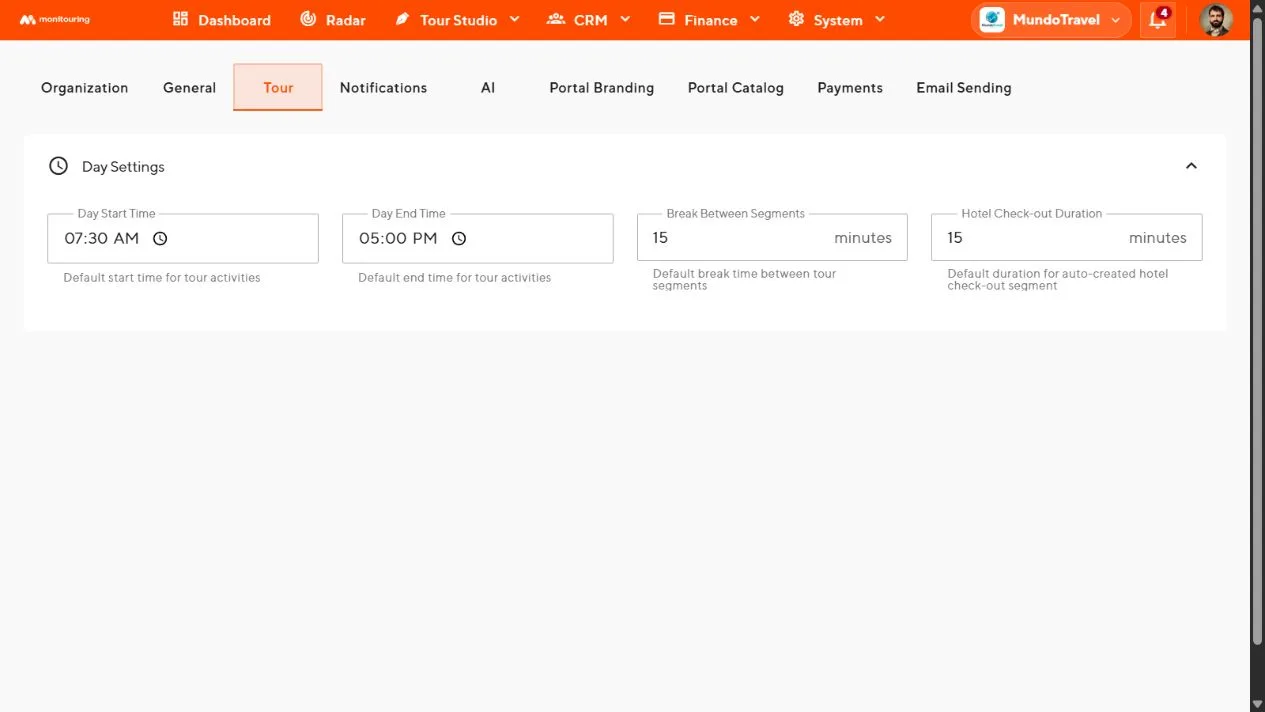
Tour
| Setting | Effect |
|---|---|
| Day Start Time | Start of a newly added day |
| Day End Time | End of the working day |
| Break Between Segments | Gap placed between segments |
| Hotel Check-out Duration | Time reserved for generated check-out segments |
AI
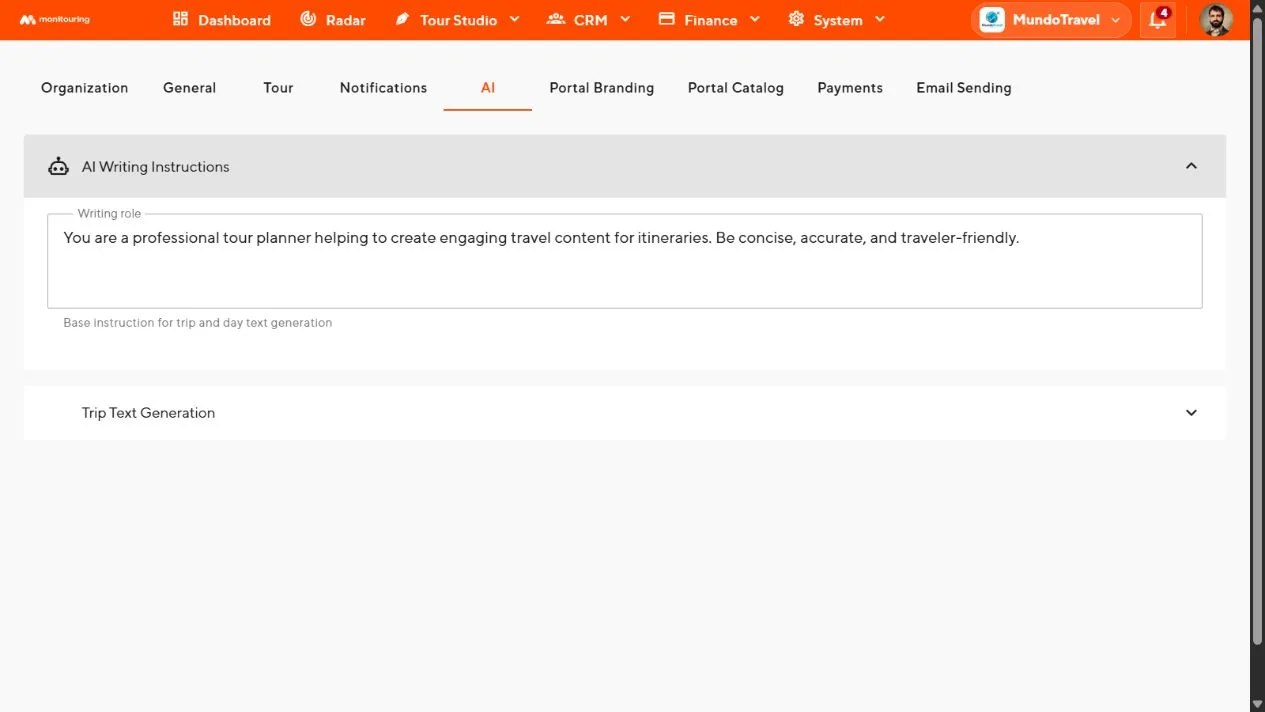
- Writing role sets the perspective of generated text, for example an experienced tour operator writing for travelers.
- Content Instruction adds standing rules for tone, spelling, terminology, and topics to avoid.
Keep both short. Put trip-specific facts in the trip, not here. Always review generated text before travelers see it.
Check the result
- Create a Draft trip.
- Add a day and several segments.
- Check the names, times, gaps, and check-out timing.
- Generate a short description and review it.
New itineraries start with your usual day times, spacing, and writing style.