
Browse the operator manual
Start here
Get started with Operations CenterTake a trip from Draft to departureUse Dashboard and RadarVideo guidesOrganization setup
Set up your organizationSet company identity and portal brandingSet editor, schedule, and writing defaultsConfigure traveler forms, legal content, and the public catalogConfigure payment providers and payment documentsConfigure automatic emailSet monitoring and notification thresholdsCreate and build
Create a tripImport a trip with AIComplete trip details and residencesBuild the itineraryAdd flights and transfersAssign field staff and partnersPublish and sell
Configure and publish the traveler portalDesign the traveler pageGive and remove portal accessConfigure pricing and collect paymentsReview and approve join requestsManage travelers and roomingWork with sales and FinancePrepare and operate
Prepare a trip for departureManage files and messagesMonitor live operationsSaved content and contacts
Reuse saved trip contentMaintain field staff, partners, and suppliersReference
Trip status referenceManage the tour listFix common problemsCreate and build
Assign field staff and partners
Add the people and companies working on the trip, then assign staff to days and segments.
Before you begin
- Days and segments in place
You will learn to
- Add field staff and partners to a trip
- Assign day staff and segment staff
- Turn on location monitoring for a segment
Reviewed September 2026
Add field staff to the trip
- Open Edit → Field Staff.
- Search by name or email and select the person, or add a new staff member.
- Check the name, role, and contact details.
- Save.
You can also add staff from an image of a staff list. Review the extracted names and contacts before saving.
Assign staff to days and segments
| Assignment | Meaning |
|---|---|
| Trip staff | Part of the trip team |
| Guide of the Day | Responsible for the whole day |
| Segment staff | Responsible for one segment |
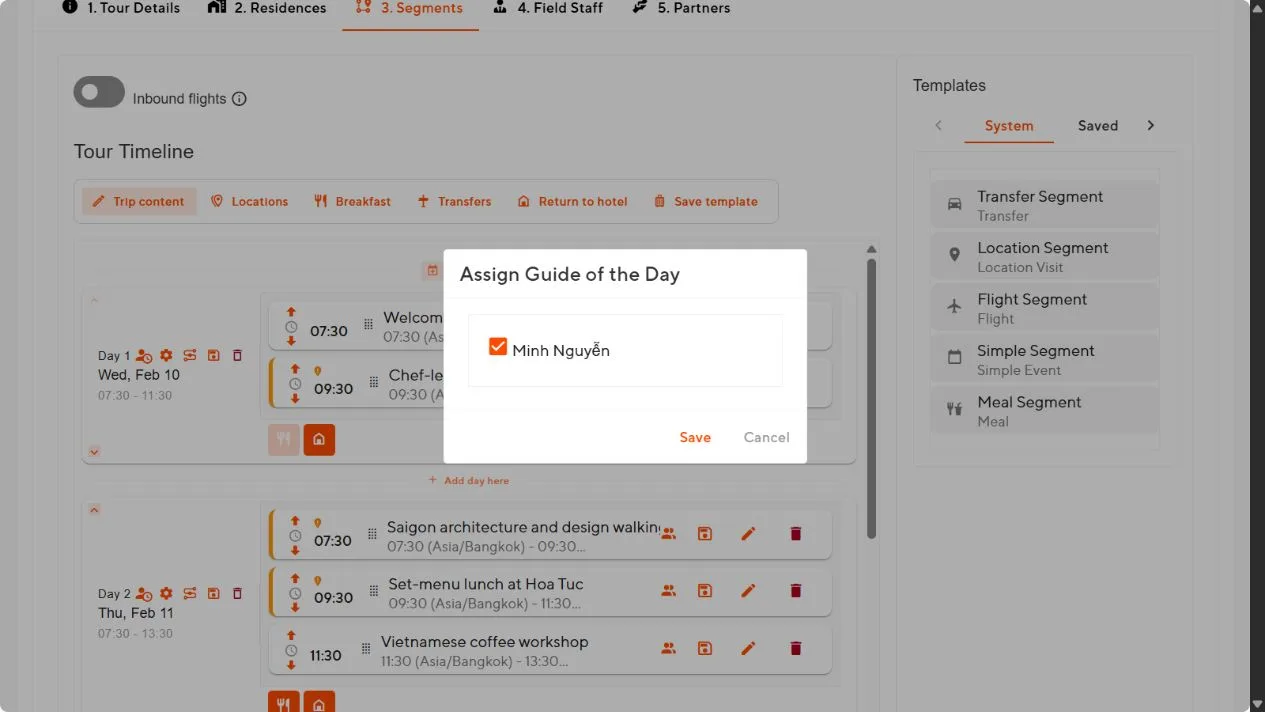
- In Segments, select the staff icon beside the day number and choose the Guide of the Day.
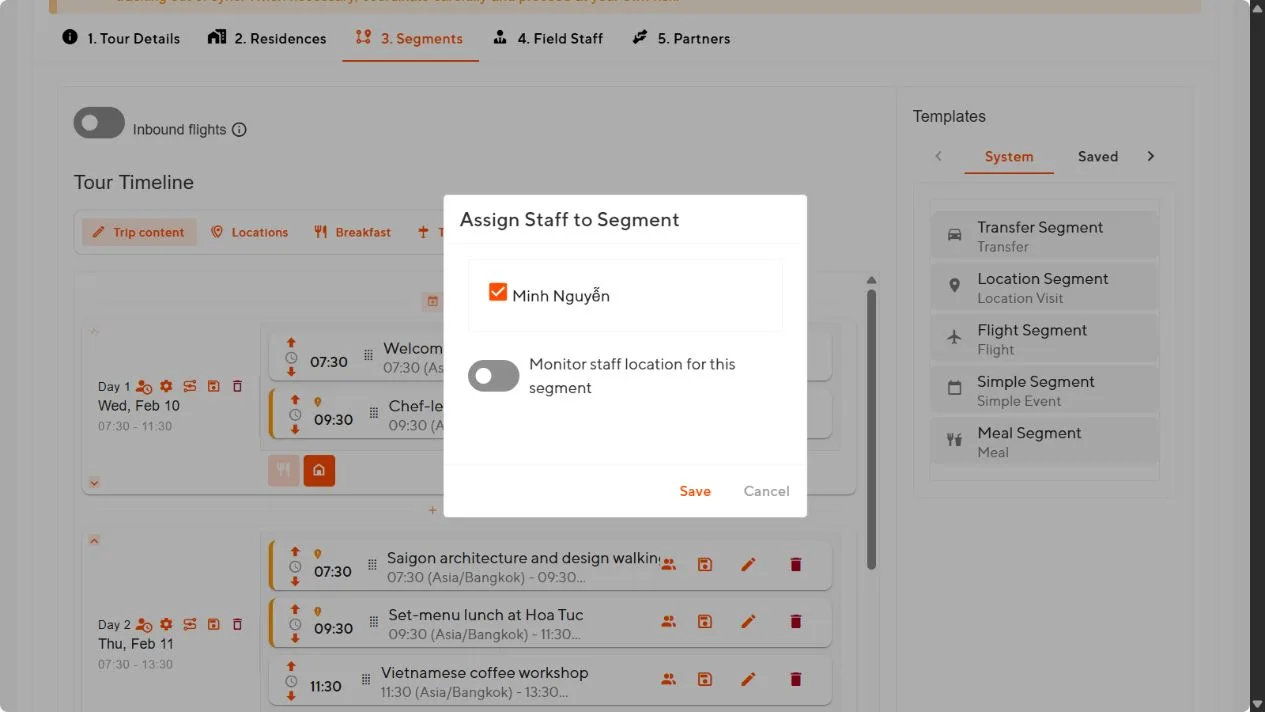
- Open the staff icon on a segment when a different person is responsible for it.
- Choose the person and, if needed, turn on location monitoring for that segment.
- Save.
Day staff and segment staff are assigned separately. Assigning a Guide of the Day does not assign that person to each segment.
Location monitoring
Turn on location monitoring for a segment when the staff member should be at the location before it starts. Operations Center then sends a notification if the person is not there at the times set in Settings → Notifications. Agree the process with the staff member first.
Add partners
- Open Edit → Partners.
- Select an existing partner or add a new one, including the company they represent.
- Save.
Partners can receive targeted portal links and shared files.
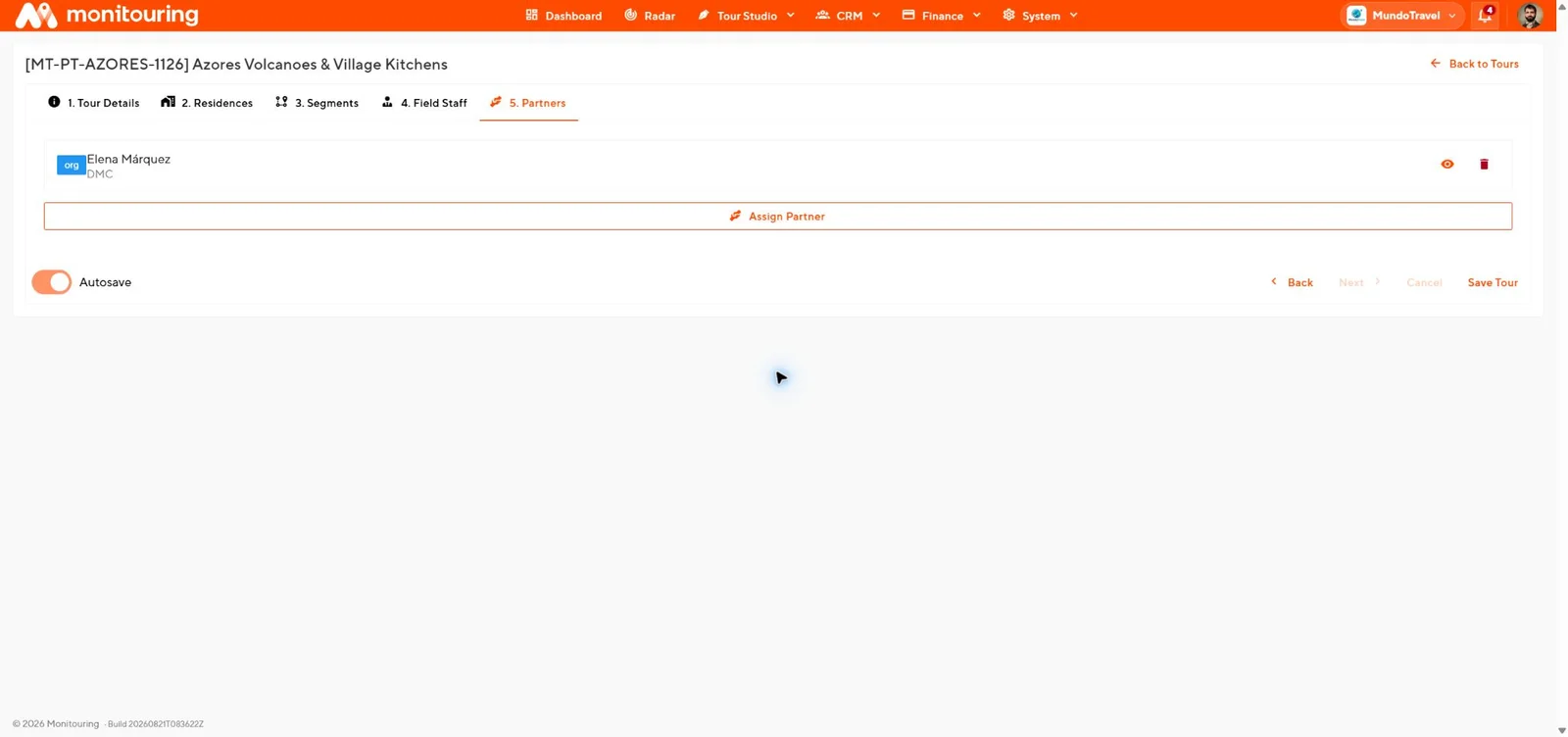
Every day has a Guide of the Day, special segments have their own staff, and partners are listed on the trip.