
Browse the operator manual
Start here
Get started with Operations CenterTake a trip from Draft to departureUse Dashboard and RadarVideo guidesOrganization setup
Set up your organizationSet company identity and portal brandingSet editor, schedule, and writing defaultsConfigure traveler forms, legal content, and the public catalogConfigure payment providers and payment documentsConfigure automatic emailSet monitoring and notification thresholdsCreate and build
Create a tripImport a trip with AIComplete trip details and residencesBuild the itineraryAdd flights and transfersAssign field staff and partnersPublish and sell
Configure and publish the traveler portalDesign the traveler pageGive and remove portal accessConfigure pricing and collect paymentsReview and approve join requestsManage travelers and roomingWork with sales and FinancePrepare and operate
Prepare a trip for departureManage files and messagesMonitor live operationsSaved content and contacts
Reuse saved trip contentMaintain field staff, partners, and suppliersReference
Trip status referenceManage the tour listFix common problemsSaved content and contacts
Reuse saved trip content
Save templates, locations, residences, and preparation checklists, and apply them to new trips.
Before you begin
- Permission to maintain organization templates
You will learn to
- Save segment, day, and tour templates
- Apply templates and saved content to a trip
Reviewed September 2026
What you can save
| Saved content | Reuses | Where |
|---|---|---|
| Tour Template | A whole multi-day program | Tour Studio → Tour Templates |
| Day Template | One day and its segments | Tour Studio → Day Templates |
| Segment Template | One segment, such as a standard transfer | Tour Studio → Segment Templates |
| Saved Location | A place used in segments and maps | Tour Studio → Saved Locations |
| Residence | An accommodation and its room types | Tour Studio → Residences |
| Operations Template | A set of operations tasks | System → Operations Templates |
| Traveler Checklist | A set of traveler requirements | System → Traveler Checklists |
| Materials Template | A materials package with audiences | System → Materials Templates |
| File Library | Files used across trips | System → File Library |
| Notification emails | Email templates and language versions | System → Notification emails |
Save the smallest unit that repeats. One standard transfer is a Segment Template. A complete program is a Tour Template.
Save from a trip
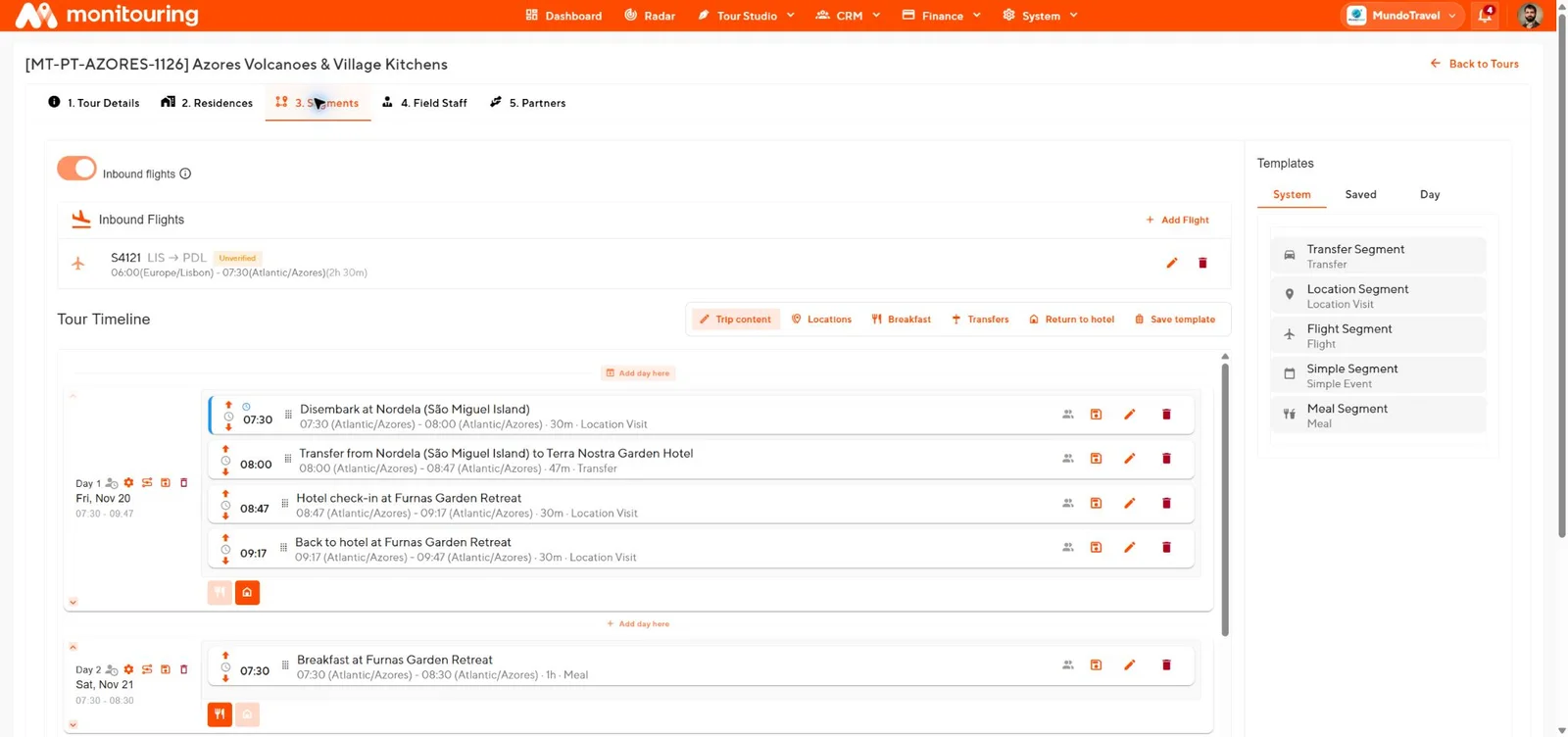
- Open a reviewed trip in Edit → Segments.
- Select Save template on a segment, on a day, or in the toolbar for the whole trip.
- Remove traveler names, prices, confirmation numbers, and one-off notes.
- Name and describe the template so another operator knows when to use it.
A Tour Template can include text, photos, locations, residences, flights, and staff. It never includes dates, travelers, rooms, partners, or the published page.
Apply to a trip
- To start a trip from a Tour Template, select Tour Studio → New Tour → Template Creation → Use Template.
- To add a saved segment or day, drag it from the Saved or Day tab in the template library onto the timeline.
- To apply a preparation template, select Apply template in the matching Preparation tab.
Applied content is a copy. Check dates, times, names, and prices in the new trip. Editing the template later does not change trips that already used it.
Keep saved content current
Search before adding a new location, residence, staff member, partner, or supplier. Review templates after price, legal, or policy changes.
New trips start from your saved content, and every copied detail has been checked for this departure.