
Browse the operator manual
Start here
Get started with Operations CenterTake a trip from Draft to departureUse Dashboard and RadarVideo guidesOrganization setup
Set up your organizationSet company identity and portal brandingSet editor, schedule, and writing defaultsConfigure traveler forms, legal content, and the public catalogConfigure payment providers and payment documentsConfigure automatic emailSet monitoring and notification thresholdsCreate and build
Create a tripImport a trip with AIComplete trip details and residencesBuild the itineraryAdd flights and transfersAssign field staff and partnersPublish and sell
Configure and publish the traveler portalDesign the traveler pageGive and remove portal accessConfigure pricing and collect paymentsReview and approve join requestsManage travelers and roomingWork with sales and FinancePrepare and operate
Prepare a trip for departureManage files and messagesMonitor live operationsSaved content and contacts
Reuse saved trip contentMaintain field staff, partners, and suppliersReference
Trip status referenceManage the tour listFix common problemsPrepare and operate
Monitor live operations
Read flight, weather, transfer, and staff-location alerts and take each one to resolved.
Before you begin
- A Confirmed or In progress trip
- Flights, transfers, and staff assignments entered
You will learn to
- Read the Monitoring Console
- Acknowledge and resolve a notification
- Handle a missing staff location
Reviewed September 2026
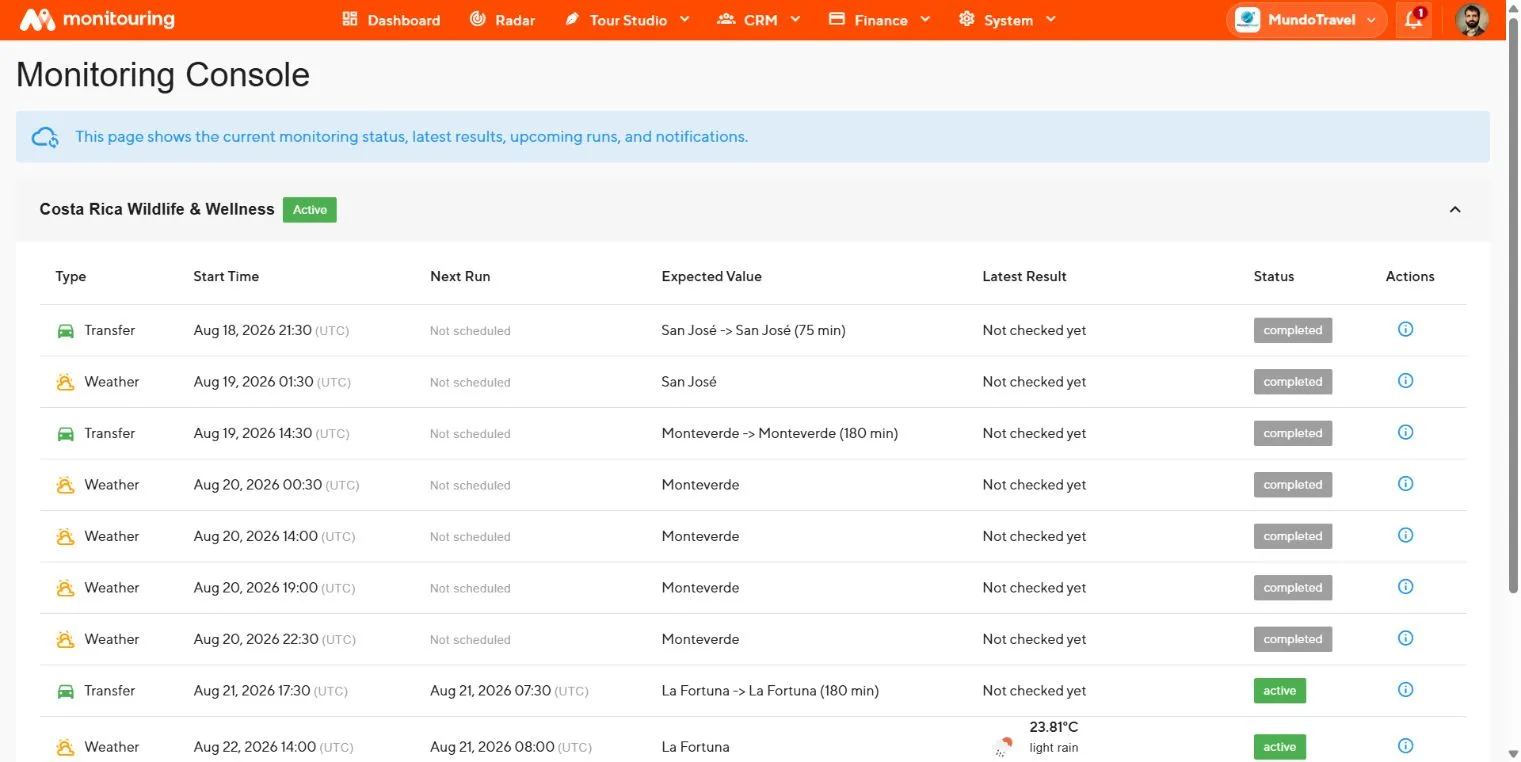
Monitoring starts when a trip is Confirmed and stops when it is Completed, Cancelled, or Interrupted. It checks flights, weather at segment locations, transfer durations, and staff location for segments with monitoring turned on.
Read the Monitoring Console
Each row shows the check type, scheduled time, next run, expected value, latest result, and status.
Work a notification
- Open the notification from the bell, the Dashboard, or the console.
- Read the trip, segment, severity, and time.
- Open the details to see the latest result and when it was checked.
- Select Acknowledge to take ownership.
- Contact the supplier, staff member, or travelers and adjust the itinerary if needed.
- Record what you did in the trip’s Operations room.
- Select Resolve.
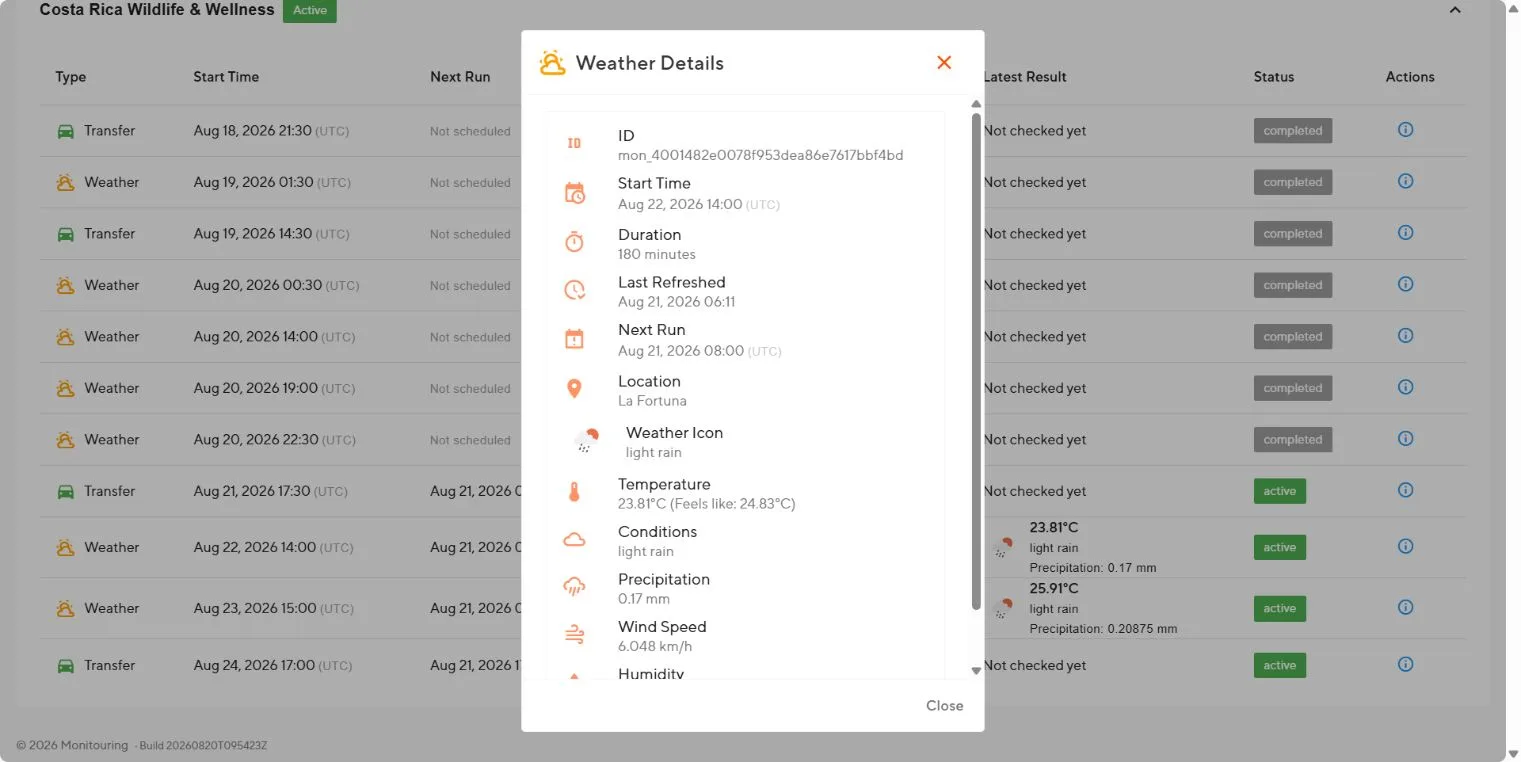
Severity follows the thresholds in Settings → Notifications: Warning, Alert, and Critical.
Missing staff location
If a staff member shows no recent location:
- Call or message the staff member.
- Check that the person is assigned to the segment and monitoring is on.
- Ask them to check location permission and connectivity on their device.
After an itinerary change
In All Tours, open the trip’s actions and select Sync monitoring → Soft sync so checks follow the new schedule. See Manage the tour list.
Every alert has an owner, a recorded response, and a final state.