
Browse the operator manual
Start here
Get started with Operations CenterTake a trip from Draft to departureUse Dashboard and RadarVideo guidesOrganization setup
Set up your organizationSet company identity and portal brandingSet editor, schedule, and writing defaultsConfigure traveler forms, legal content, and the public catalogConfigure payment providers and payment documentsConfigure automatic emailSet monitoring and notification thresholdsCreate and build
Create a tripImport a trip with AIComplete trip details and residencesBuild the itineraryAdd flights and transfersAssign field staff and partnersPublish and sell
Configure and publish the traveler portalDesign the traveler pageGive and remove portal accessConfigure pricing and collect paymentsReview and approve join requestsManage travelers and roomingWork with sales and FinancePrepare and operate
Prepare a trip for departureManage files and messagesMonitor live operationsSaved content and contacts
Reuse saved trip contentMaintain field staff, partners, and suppliersReference
Trip status referenceManage the tour listFix common problemsReference
Manage the tour list
Find trips in All Tours, use row actions, change status, sync monitoring, and use Deleted Tours.
You will learn to
- Find and open a trip
- Sync monitoring after a change
- Move a trip to Deleted Tours and restore it
Reviewed September 2026
Find a trip
Search by name or code and filter by status or date. Check the code and start date before opening a trip with a repeated name. Row actions open the trip’s Edit, Travelers, Preparation, Files, Messages, Portal, and Payments workspaces.
Row actions
Depending on status, the actions menu offers:
- open the trip workspaces;
- copy the trip program as text;
- open the public page;
- Sync monitoring;
- change status;
- move to Deleted Tours.
Sync monitoring
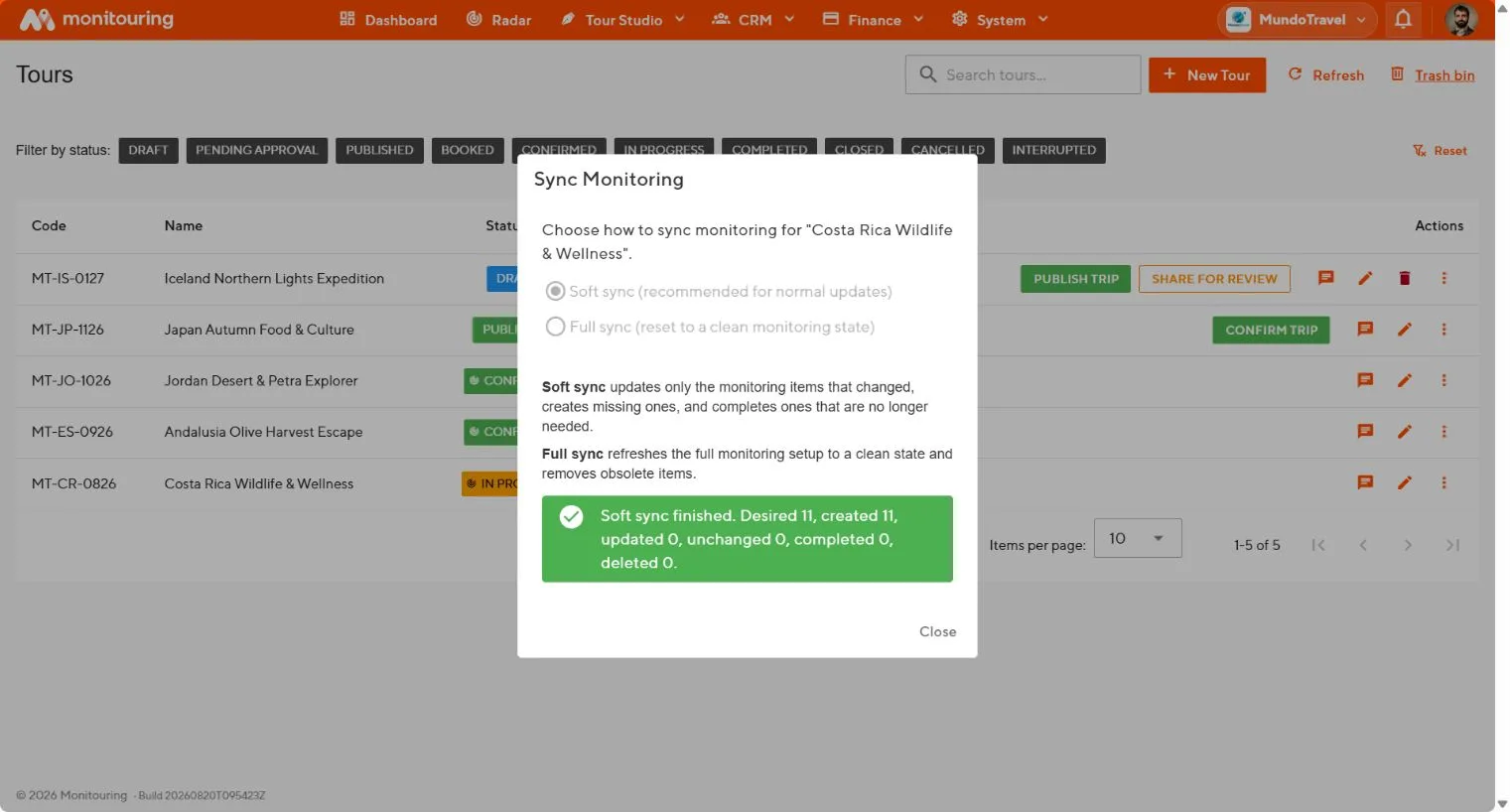
- Open the trip’s actions menu and select Sync monitoring.
- Choose Soft sync after itinerary or staff changes. It keeps existing history and updates changed items.
- Choose Full sync only to rebuild monitoring from scratch.
- Read the summary, then check the Monitoring Console.
Change status
Status actions appear only when the change is allowed. Read the confirmation dialog before publishing, confirming, cancelling, interrupting, or closing. See the Trip status reference.
Deleted Tours
Only Draft, Cancelled, and Closed trips can be moved to Deleted Tours. Close an Interrupted trip first.
- Check the trip name, code, and date.
- Select move to Deleted Tours.
- To recover it, open Tour Studio → Deleted Tours and select Restore.
You can find any trip, keep its monitoring in step with the itinerary, and recover a deleted trip.