
Browse the operator manual
Start here
Get started with Operations CenterTake a trip from Draft to departureUse Dashboard and RadarVideo guidesOrganization setup
Set up your organizationSet company identity and portal brandingSet editor, schedule, and writing defaultsConfigure traveler forms, legal content, and the public catalogConfigure payment providers and payment documentsConfigure automatic emailSet monitoring and notification thresholdsCreate and build
Create a tripImport a trip with AIComplete trip details and residencesBuild the itineraryAdd flights and transfersAssign field staff and partnersPublish and sell
Configure and publish the traveler portalDesign the traveler pageGive and remove portal accessConfigure pricing and collect paymentsReview and approve join requestsManage travelers and roomingWork with sales and FinancePrepare and operate
Prepare a trip for departureManage files and messagesMonitor live operationsSaved content and contacts
Reuse saved trip contentMaintain field staff, partners, and suppliersReference
Trip status referenceManage the tour listFix common problemsSaved content and contacts
Maintain field staff, partners, and suppliers
Keep contact details current in CRM and connect the right people and companies to each trip.
Before you begin
- Permission to maintain CRM records
You will learn to
- Add and update contacts
- Assign contacts to trips
Reviewed September 2026
CRM → Field Staff, Partners, or Suppliers
Contact types
- Field staff work on the trip, such as guides and trip leaders.
- Partners are external people, for example at a destination management company or travel agency. Their company is recorded with them.
- Suppliers provide accommodation, activities, meals, and transport.
Adding a contact to CRM does not add them to a trip. Removing them from a trip keeps their CRM record.
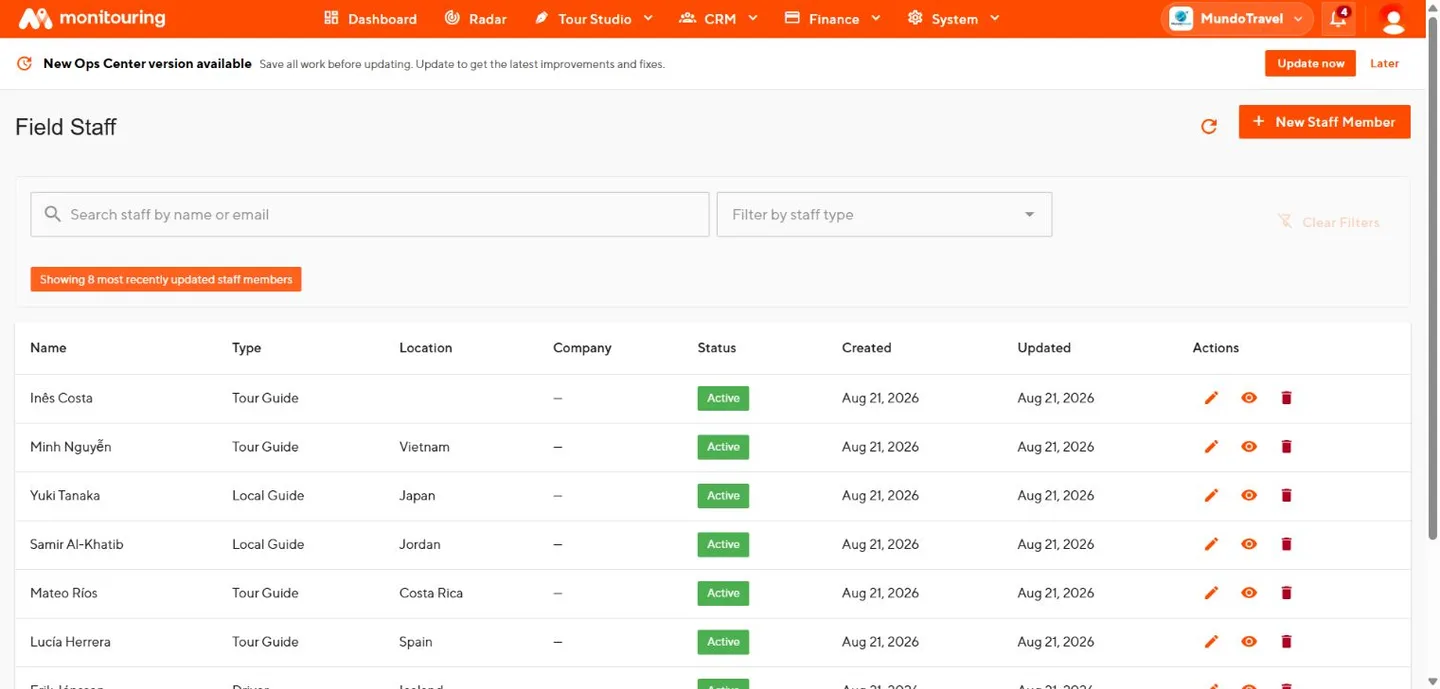
Add or update a contact
- Search by name, email, phone, or company.
- Open the existing record, or create a new one.
- Enter the name, role or type, contact details, location, and status.
- Save.
Updates apply everywhere the contact is used. Keep one-trip exceptions, such as a temporary phone number, in that trip’s notes.
Assign to a trip
- Field staff: Edit → Field Staff, then assign days and segments in Segments.
- Partners: Edit → Partners.
- Suppliers: select the supplier on a residence, a segment, or a booking in Preparation.
Keep the directory clean
Use consistent names and roles. Mark contacts you no longer work with as inactive instead of deleting them. Before changing a shared contact, check which trips use it.
CRM holds one current record per person or company, and each trip shows who is responsible for what.