
Browse the operator manual
Start here
Get started with Operations CenterTake a trip from Draft to departureUse Dashboard and RadarVideo guidesOrganization setup
Set up your organizationSet company identity and portal brandingSet editor, schedule, and writing defaultsConfigure traveler forms, legal content, and the public catalogConfigure payment providers and payment documentsConfigure automatic emailSet monitoring and notification thresholdsCreate and build
Create a tripImport a trip with AIComplete trip details and residencesBuild the itineraryAdd flights and transfersAssign field staff and partnersPublish and sell
Configure and publish the traveler portalDesign the traveler pageGive and remove portal accessConfigure pricing and collect paymentsReview and approve join requestsManage travelers and roomingWork with sales and FinancePrepare and operate
Prepare a trip for departureManage files and messagesMonitor live operationsSaved content and contacts
Reuse saved trip contentMaintain field staff, partners, and suppliersReference
Trip status referenceManage the tour listFix common problemsPublish and sell
Work with sales and Finance
Find sales, check schedules and payments, record manual payments and refunds, issue receipts, and export.
Before you begin
- Trip pricing entered
You will learn to
- Read the Finance views
- Reconcile a sale
- Record payments, refunds, and receipts
Reviewed September 2026
Finance views
| View | Shows |
|---|---|
| Financial Status | Totals pending, partially paid, paid, overdue, and refunded |
| Monthly Projection | Expected collection by month |
| Sales | Every sale with payer, trip, total, paid, and remaining amounts |
| Payment Stream | Every recorded transaction |
| Reminders | Every payment reminder and its result |
Use the totals to find work, then open the sale to act.
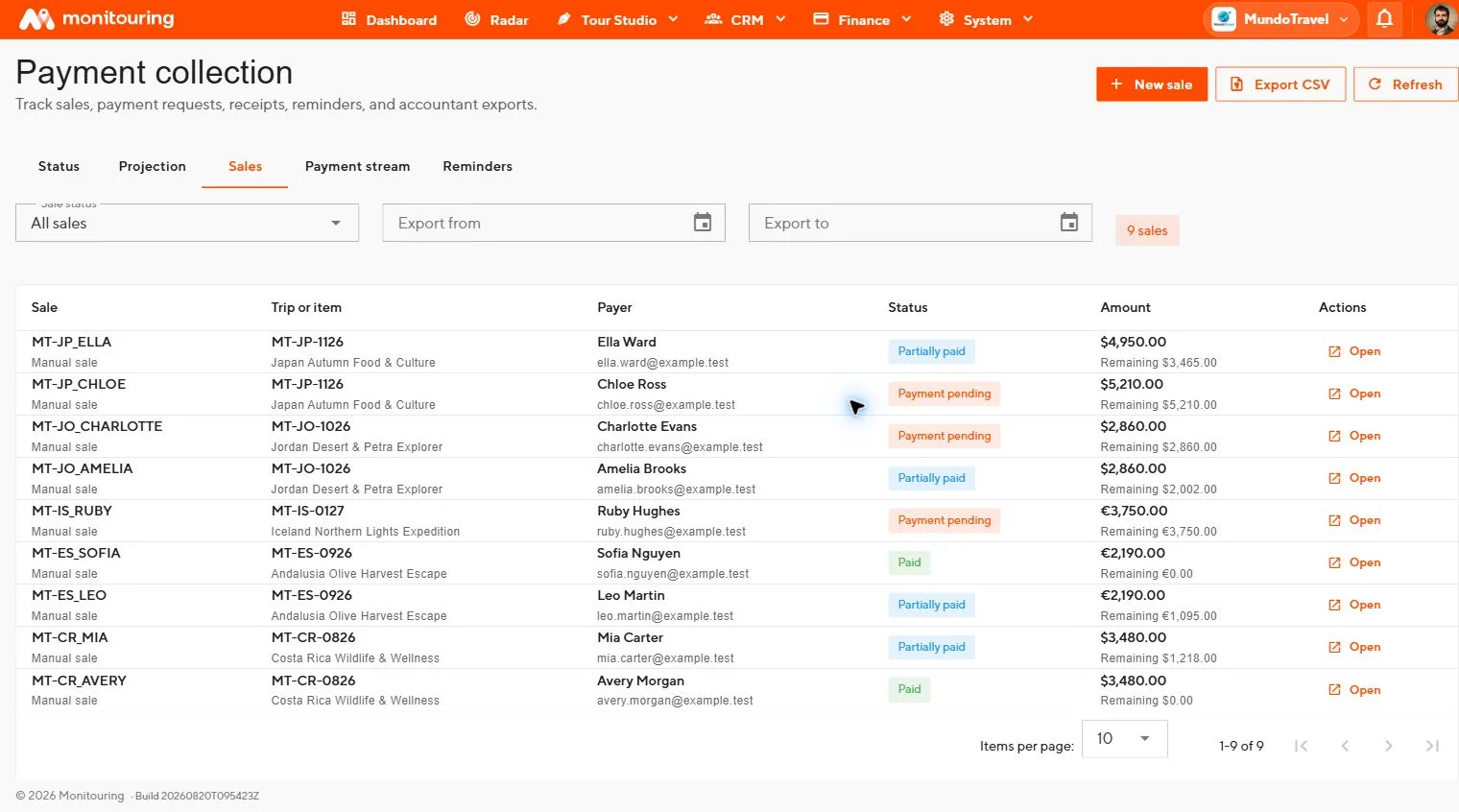
Sale states
| State | Meaning |
|---|---|
| Payment pending | Nothing paid yet |
| Partially paid | Some of the total paid |
| Paid | Total paid |
| Overdue | A scheduled amount is unpaid past its due date |
| Refunded or Partially refunded | Money returned |
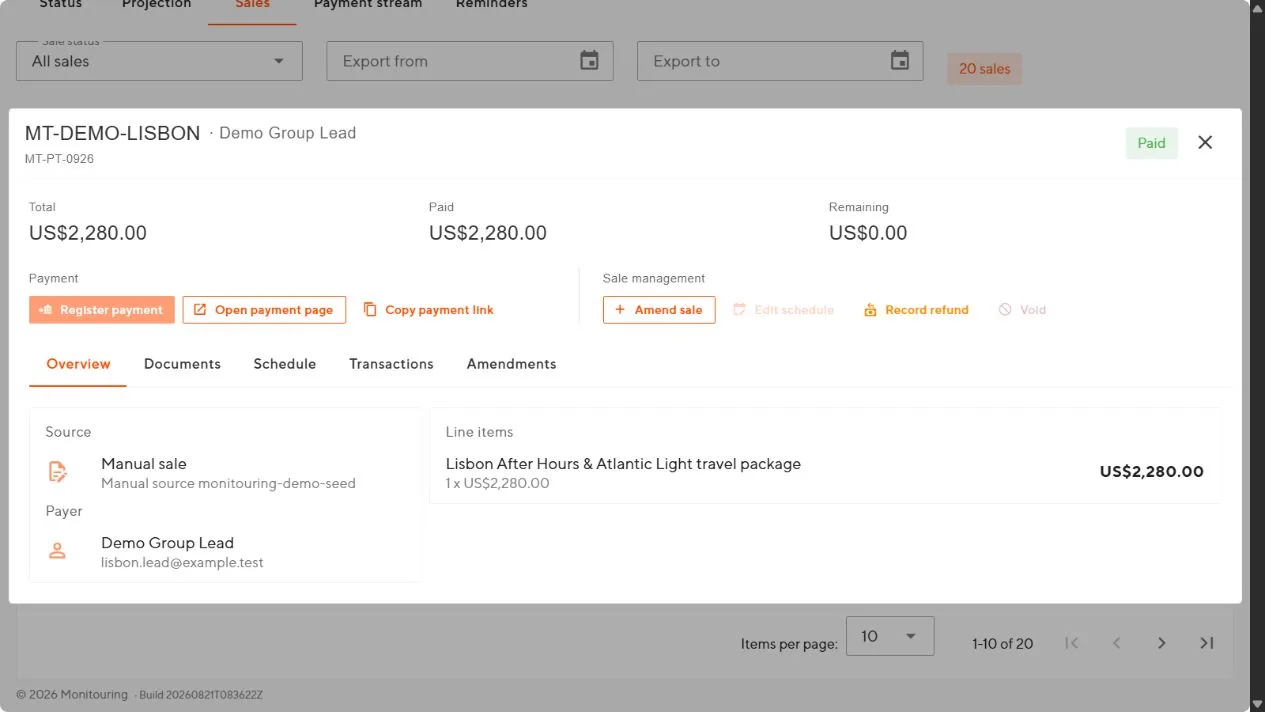
Open and check a sale
- In Sales, filter by status or date and open the sale.
- Check the payer, trip, currency, total, paid, and remaining amounts.
- Check the line items: base price, supplement, upgrades, extras, discounts.
- Read the schedule row by row.
- Open the Transactions tab for payments, refunds, and provider references.
- Check the payment link and reminder history.
Create a manual sale
Use New sale for a sale that did not come from a join request.
- Select New sale.
- Enter the payer, currency, and trip.
- Add line items with description, quantity, and amount.
- Build the payment schedule.
- Create the sale and open it.
To fix a sale that came from a join request, amend that sale instead of creating a new one.
Send a payment link
Open the sale and create the payment link for the due amount. Check the payer’s email and the amount, then send the link to the payer only.
Amend a sale
Use the amendment action to add, remove, or reprice items. Check the new balance, then reapply the schedule if the interface offers it.
Record a manual payment
- Have the bank or accounting record to hand.
- Open the sale and choose the manual payment action.
- Enter the amount, date, method, and reference.
- Save and check the Transactions tab and the remaining balance.
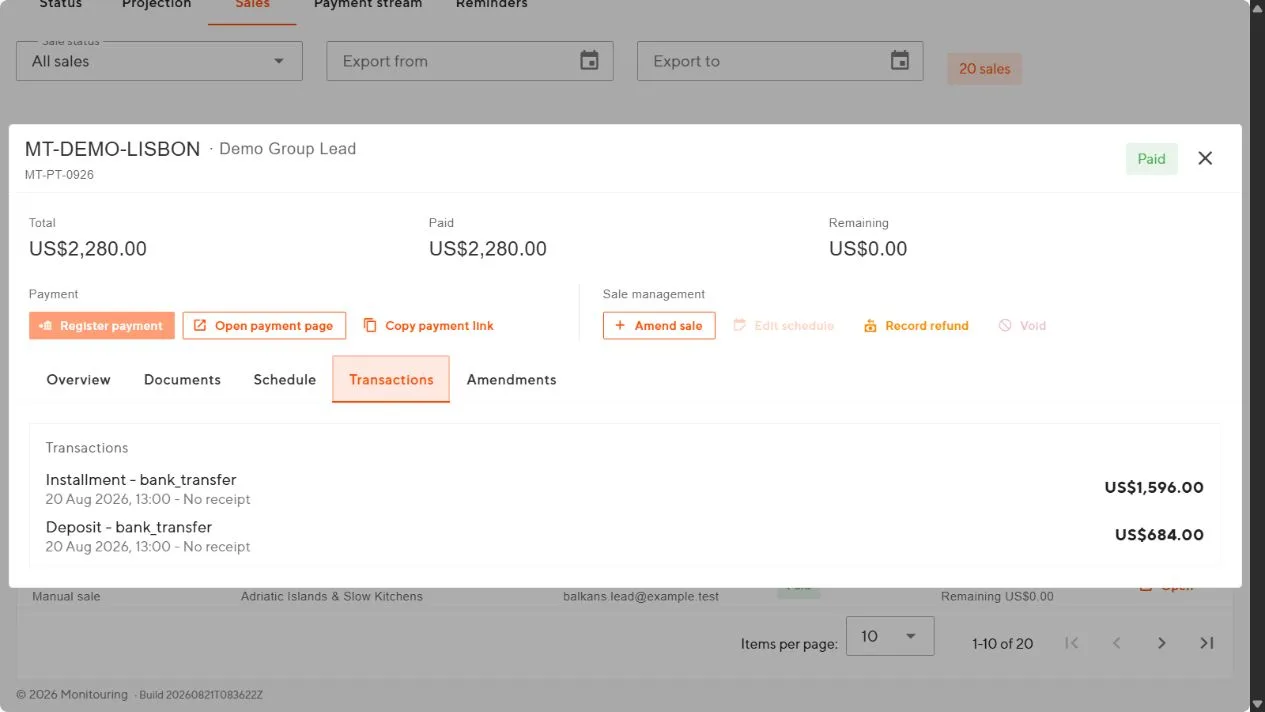
Record a refund
Open the sale, choose the refund action, and enter the amount and reference from the provider or bank. The refund stays visible in the transaction history.
Cancelling a trip or rejecting a request does not cancel payment links or refund money. Open each affected sale and handle links and refunds there.
Issue a fee note or receipt
Open the sale’s Documents tab, generate the document, and check the payer, amount, number, logo, and footnote. Download it or send it from the same tab.
Reminders
The Reminders view shows each reminder as Scheduled, Queued, Processing, Sent, Failed, or Cancelled. Before contacting a payer, check whether a reminder was just sent.
Export
Select Export CSV with the status and date range you need. Check the organization, currency, and row count before sending the file to accounting.
Every sale’s total, paid, remaining, and refunded amounts agree with the provider and your accounting records.